VSCode CodeQL update breaks the CodeQL CLI installation either in Windows or WSL (Linux on Windows)
Maintainer antworten meist innerhalb von 3 Tagen
Dieses Issue hat noch niemand übernommen.
Bewertung
- Schwierigkeit
- 4/5
- Geschätzter Aufwand
- 3-5 Tage
- Anfängerfreundlichkeit
- 35/100
- Issue-Typ
- Bug
- Klarheit
- Größtenteils klar
- Aktivitätsstatus
- Veraltet
- Tech-Stack
- typescript, vscode
- Bereich
- devtools
Rechercherichtung
Reproduziere den Installationsablauf, indem du die VSCode CodeQL-Erweiterung in Windows und WSL installierst, und vergleiche dann die im Bericht angezeigten globalStorage-Distributionsordner. Beginne mit dem Downloadpfad der QL-Symbolleiste und überprüfe, dass das Aktualisieren einer Umgebung nicht dazu führt, dass die andere nach dem falschen Distributionsverzeichnis sucht.
Vom Indexierungsmodell aus dem Issue-Text verfasst.
Beschreibung
Describe the bug
VSCode allows opening WSL folders and working with them from Windows. VSCode has native support for running extensions in this scenario and allows to select which extensions installed in Windows should also be installed in WSL:
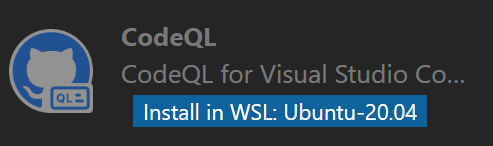
However VSCode CodeQL extension shares some global state, because installing the extension in WSL breaks the installation on Windows and reinstallation of it in Windows breaks it in WSL.
Version
All of them, it bugs me already for a while.
To reproduce
- Install VSCode CodeQL extension in VSCode in Windows. Make sure the CodeQL CLI is downloaded and installed (I usually click on the QL toolbar button to trigger it.). See it succeeded. Close the VSCode window.
- Open your WSL Linux terminal and run
code .It opens VSCode with the current WSL folder opened. - Go to extensions, search for the CodeQL extension and click
Install in WSL. Click QL button in the toolbar to trigger CodeQL CLI download. See it succeeded. - Close VSCode. Open the VSCode in Windows (Note that you need to open a folder in Windows, otherwise it opens the last known session, i.e. the WSL one.). Click on QL button in toolbar and see that VSCode fails to find CodeQL CLI path.
Expected behavior
Updating CodeQL in WSL doesn't break it in Windows. It is completely independent from the version in Windows or updated together.
Additional context
It looks like CodeQL extension generates incremental folder names for the CLI installation. So when my Windows installation is put to c:\Users\name\AppData\Roaming\Code\User\globalStorage\github.vscode-codeql\distribution30\ folder, the WSL installation is put into ~/.vscode-server/data/User/globalStorage/github.vscode-codeql/distribution31/. When I open VSCode in Windows it fails to find CodeQL CLI with a message WARNING: Expected to find a CodeQL CLI executable at c:\Users\name\AppData\Roaming\Code\User\globalStorage\github.vscode-codeql\distribution31\codeql\codeql.exe but one was not found. Will try PATH.. Note the distribution31 in the path.
Related to https://github.com/github/vscode-codeql/issues/1380
- Vorherrschende Sprache
- TypeScript
- Sterne
- 540
- Forks
- 242
- Ø Merge
- 2 T. 20 Std.
- Gemergte PRs (30 T.)
- 36
Entwicklungsumgebung
- Kein Dockerfile und keine Docker-Compose-Datei
- Hat eine Pull-Request-Vorlage
- Beitragsleitfaden lesen
Erste Schritte
- Lesen Sie das ganze Issue und danach den Beitragsleitfaden des Projekts.
- Schreiben Sie ins Issue, dass Sie es übernehmen — das erspart doppelte Arbeit.
- Forken Sie das Repository und arbeiten Sie in einem Branch.
- Öffnen Sie einen Pull Request, der die Issue-Nummer nennt.
Mehr aus github/vscode-codeql
-
bug VSCode
Schwierigkeit 2/5 1-3 Stunden Anfängerfreundlichkeit 68/100
github/vscode-codeql#4471 · 1 Kommentar ·
Maintainer antworten meist innerhalb von 3 Tagen
-
bug enhancement VSCode
Schwierigkeit 2/5 1-3 Stunden Anfängerfreundlichkeit 68/100
github/vscode-codeql#592 · 2 Kommentare ·
Maintainer antworten meist innerhalb von 3 Tagen
-
enhancement VSCode
Schwierigkeit 3/5 1-2 Tage Anfängerfreundlichkeit 55/100
github/vscode-codeql#4432 · 1 Kommentar ·
Maintainer antworten meist innerhalb von 3 Tagen
-
bug VSCode
Schwierigkeit 3/5 1-2 Tage Anfängerfreundlichkeit 52/100
github/vscode-codeql#4356 ·
Maintainer antworten meist innerhalb von 3 Tagen
-
bug VSCode
Schwierigkeit 3/5 1-2 Tage Anfängerfreundlichkeit 64/100
github/vscode-codeql#4339 · 1 Kommentar ·
Maintainer antworten meist innerhalb von 3 Tagen
Alle Issues in github/vscode-codeql
Ähnliche Issues
-
Schwierigkeit 2/5 1-3 Stunden Anfängerfreundlichkeit 88/100
Maintainer antworten meist innerhalb von 1 Tag
-
external-issue to-triage
Schwierigkeit 1/5 Unter einer Stunde Anfängerfreundlichkeit 90/100
Maintainer antworten meist innerhalb von 1 Tag
-
Schwierigkeit 2/5 1-3 Stunden Anfängerfreundlichkeit 85/100
diegosouzapw/OmniRoute#15401 ·
Maintainer antworten meist innerhalb von 2 Tagen
-
Sign the pledgeOffen
Schwierigkeit 1/5 Unter einer Stunde Anfängerfreundlichkeit 95/100
input-output-hk/devx-updates#163 ·
-
Schwierigkeit 2/5 1-3 Stunden Anfängerfreundlichkeit 86/100
code-yeongyu/oh-my-openagent#9454 ·
Maintainer antworten meist innerhalb von 1 Tag